
Log in screen
Once the viewer application is turned on, you will see two or three firelds and login button. Put in your credentials and select if you like to start from last visited place or starting point (home location) if you have one set.
Many viewers offer saving passwoeds, which is convienient but not recommended when there is more people using same machine.
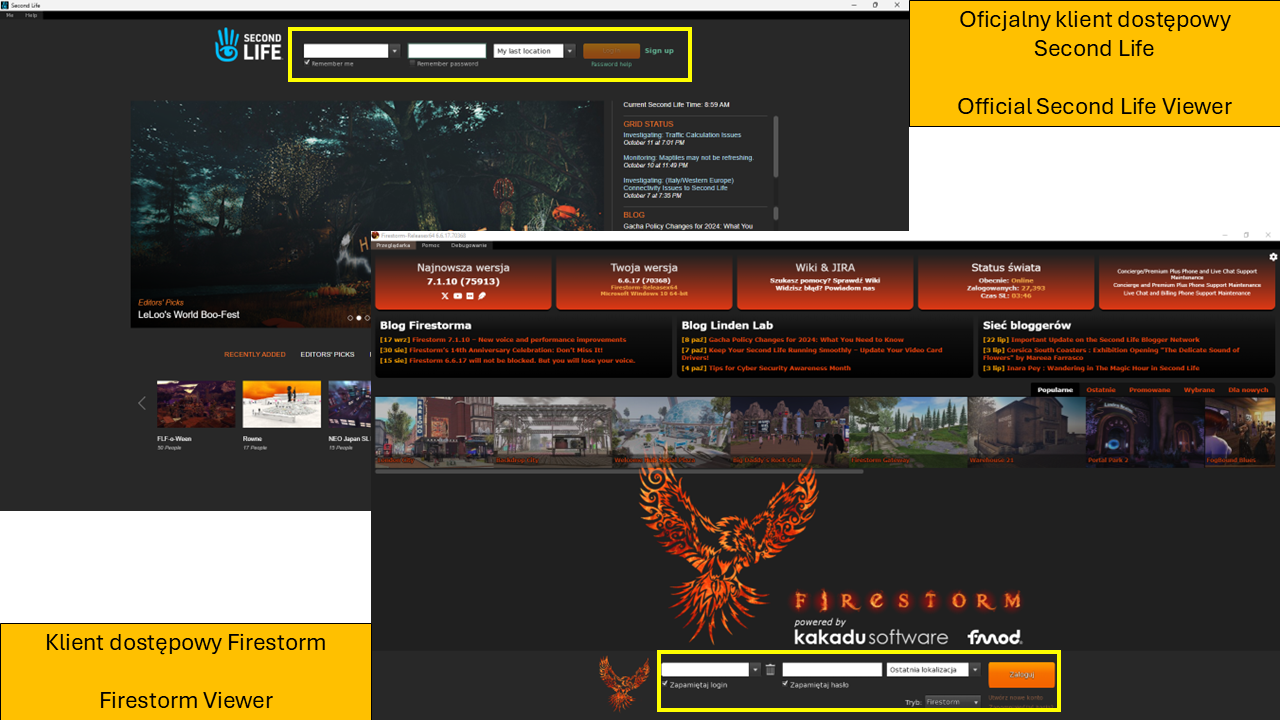
Login screens of Second Life Viewer and Firestorm Viewer.
Screen after login
User interface depending on used viewer application might have different button layout, menu or function names. Most important parts of the screen are however the same. These are:
TOP RIBBONS
First one is function ribbon. It mostly consists of menus (not always in following order): main of application, communication, world view controls, building, pomocy, advanced and developer (these can be turned on in settings), also amount of Linden Dollars on account, by L$ button, actual time (Pacific time) and icons of quick settings of graphics (monitor), media (play and/or camera), volume (speaker).
Next is navigation, address, favourites and additional info. Navigation manu is no different from any internet browser and have the same buttons. The only difference is that is controls teleports.
The address bar shows your current position in following format: Parcel name, Region name, Region classification, current position X/Y/Z (przykład: Academia Electronica,Urban Dream,Moderate,28/40/1250)
Favourites bar consist of favourite landmarks (place pins), which were moved to linked folder in Your inventory. Depending on interface it can be located at the same level or under the navigation bar (i.e. in Firestorm).
Additional info includes: search bar, LAG meter and/or other opptions enabled in application settings.
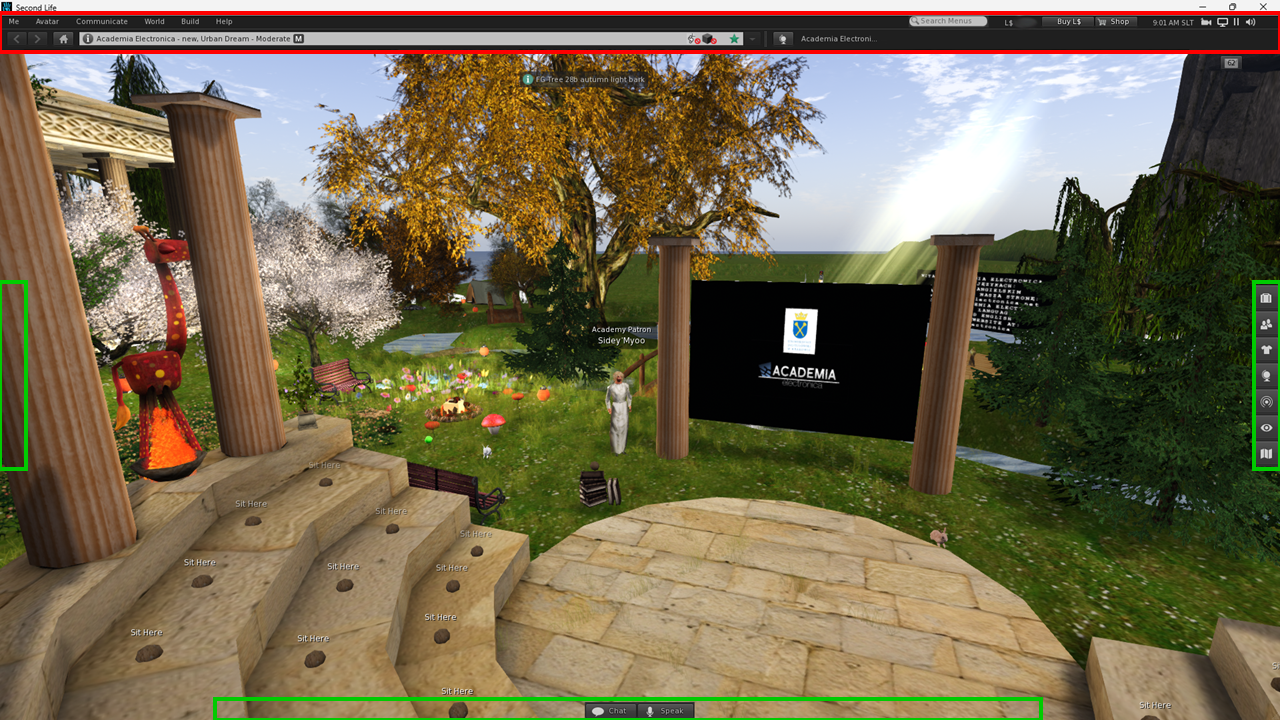
User Interface of Second Life Viewer
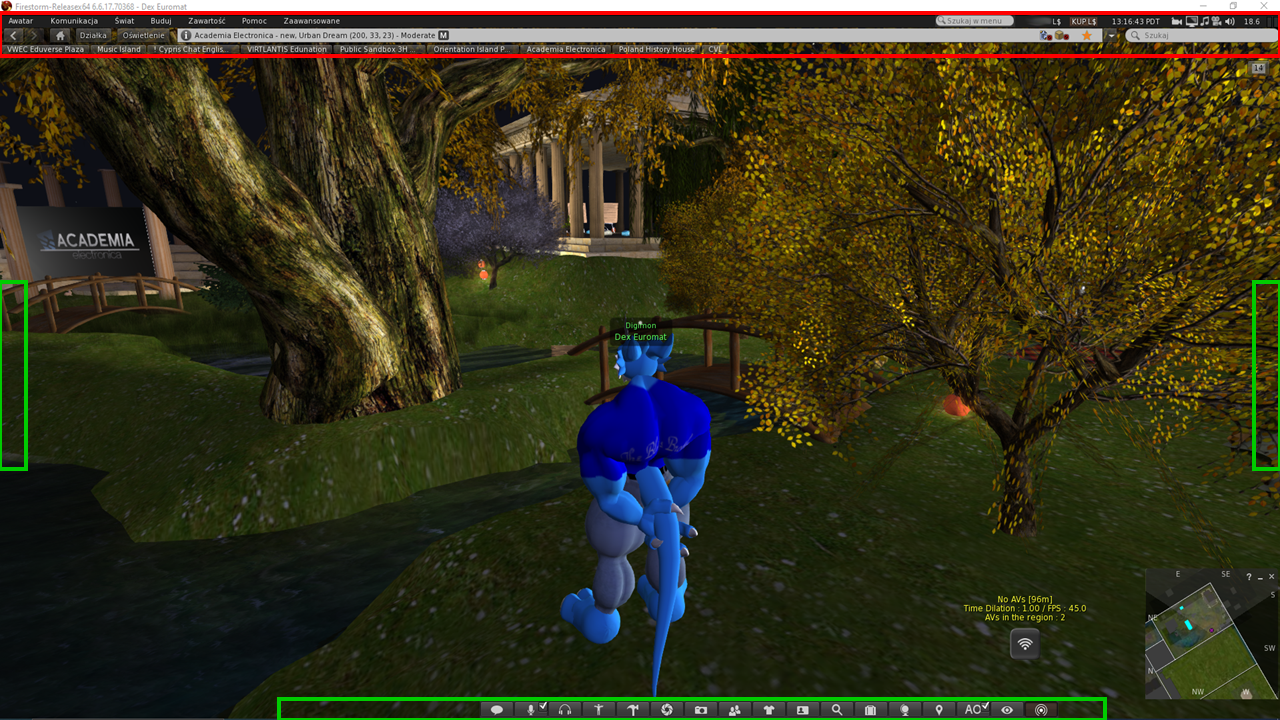
User Interface of Firestorm Viewer
3D VIEW WINDOW WITH BUTTONS, INTERNAL WINDOWS AND OVERLAYS
3D view window takes the biggest part of the screen and it is the main window to see electronic world. The screen is divided to 3 colums and 3 rows, which gives 9 areas of display. But it will be described later. User avatar is located in the center of the screen for most of the time, however it is possible to center the view on other avatars or objects at any moment, when your avatar is not moving (stands or sits on objects).
Depending on viewer application, buttons for functions or UI windows are on thel left and/or on the right and/or on the bottom of 3D view. Their size and location can be freely change between all those 3 edge bars. Most of Second Life users, have their own button bars with functions they use the most commonly, as it is better than each time searching for it in menu bar.
Many interface windows have their desired placing. In example the chat window is shown in left bottom corner while the notifications are in top right corner, after clicking the button with amount of notifications. However they are not locked into these places and user can freely move them around and change their size.
But that not applies to visual overlays or see through screens, or else HUD – Head User Display. In contrary to UI windows, these are objects, which works with other object attached to the avatar. In example it might be a menu that shows or hides an avatar part, to better work with bought outfit. These objects usually have locked size and are added to one of the 9 areas of display, which was shown in the below picture. HUD layer is under the UI windows layer and on mobile or browser viewers it is not rendered, to lower the amount of processing data.
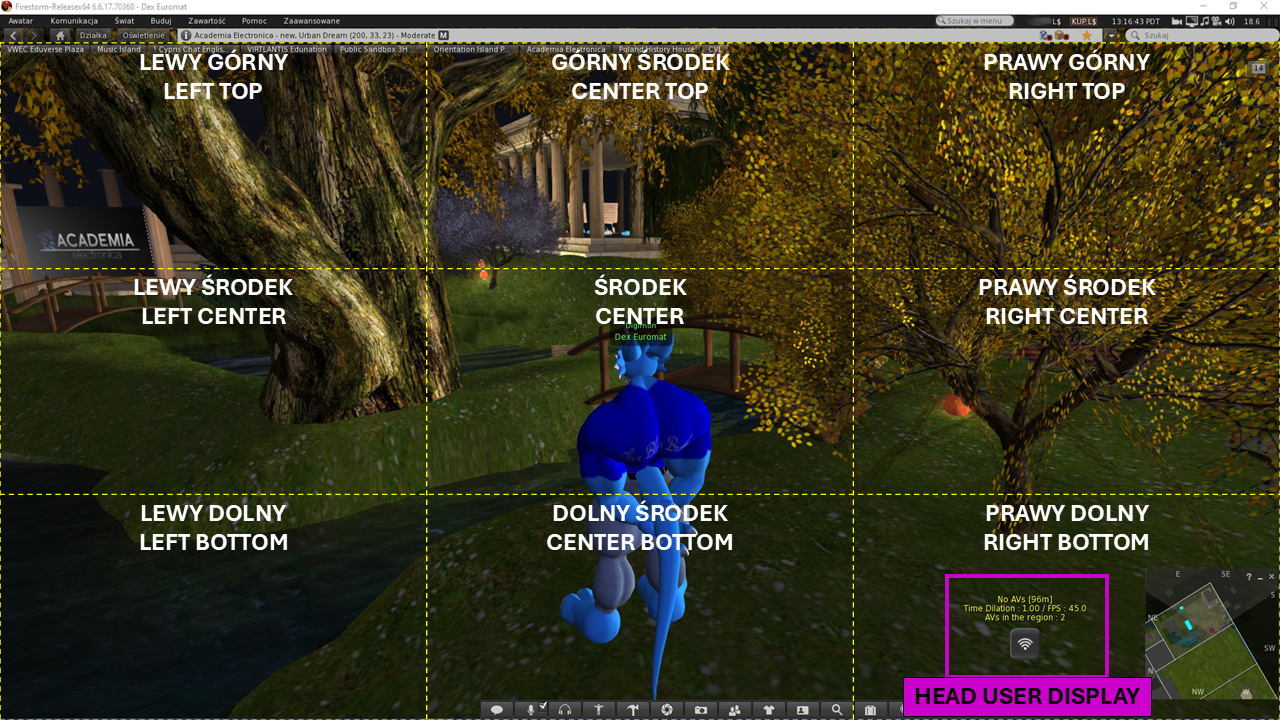
HUD showing areas
Important! Objects attached to avatar (inluding HUDs), most of the time works because of scripts. They take each time a part of RAM and CPU time of the server, on which is particular location. To check those values, right click on your avatar name and select: script info. The answer will be shown o local chat, only for you. As each location has limited RAM and CPU time for rendering avatars, many places issue also limits for them meanwhile putting up something called Script Usage Table, which refresh data from time to time and shows who is over the limit. Example below:
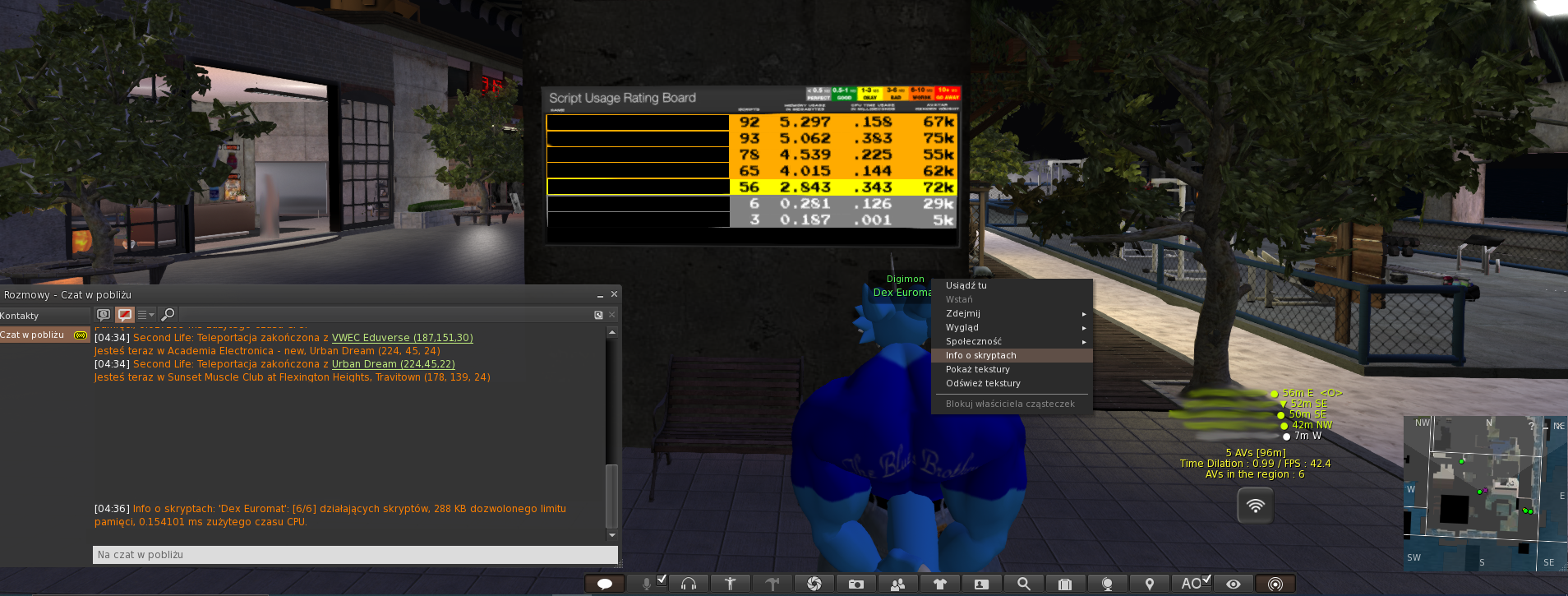
Amount of scripts info
Movement controls
There are three ways you can move in Second Life: Walking, flying and teleporting.
Walking is, as in most games, possible by ARROW keys or also after change in settings W A S D.
Flying is possible on most of locations and without flight assist (special attachment) up to 5 km. To start or end flying press F key or aslo E / PGUP keys for flying upward or C / PGDN keys for flying downward. Navigation during flight by ARROW KEYS or W S A D.
There is a first person view option for steering your walking or flying with mouse. To get to it press M on keyboard, when chat window is turned off or use mouse wheel and fully zoom in. To go back to 3rd person view, press ESCAPE or pull mouse wheel.
Teleportation is possible between location by landmarks (objects) or addresses sent on chat (SLURL). There is also a local teleportation, like in VR, where you need to quick double click on a place you want to go.
Communication with others
Second Life offers two ways of chat: written and voice. Both can have variants of public, group, direct or conference.
Public chat otherwise known as local chat is a public chat within 20m range from your avatar. There are currently objects that can send message further, called chat extenders, where bigger conference spaces don’t have to use other ways.
Written group chat is open for everyone in particular group, anywhere particular person might be. These chats allows to send special notifications to everyone even if person is not online at the moment.
Written direct chat / Instant Message is a chat between two people anywhere they are. It is private chat. You cannot disclose it unless you are filling abuse report to send to administrators.
Conference written chat is a chat of more than one person but not entire group. We can freely select list of people to chat with.
It is worth to mention that local chat has following possibilities:
whisper – typing “/whisper” before message lowers the range to 10m;
shout – typing “/shout” before message extends range to 100m and makes it bold;
emotions – IRC chat functionality, typing “/me” before message gives out an italic message from narrator perspective.
Public voice chat is a voice chat between people in range of 60m from your avatar.
Group, conference or direct voice chat is a voice connection between people anywhere they can be. It automatically switch out from local voice chat channel.